6.vue考核练习-商品后台开发

分类: vue 专栏: 2024年ssm框架 标签: vue和elementUI 商城后台
2024-09-14 10:24:11 1228浏览
vue考核练习-商品后台开发,这篇文章主要是讲前端菜单布局
参考网址
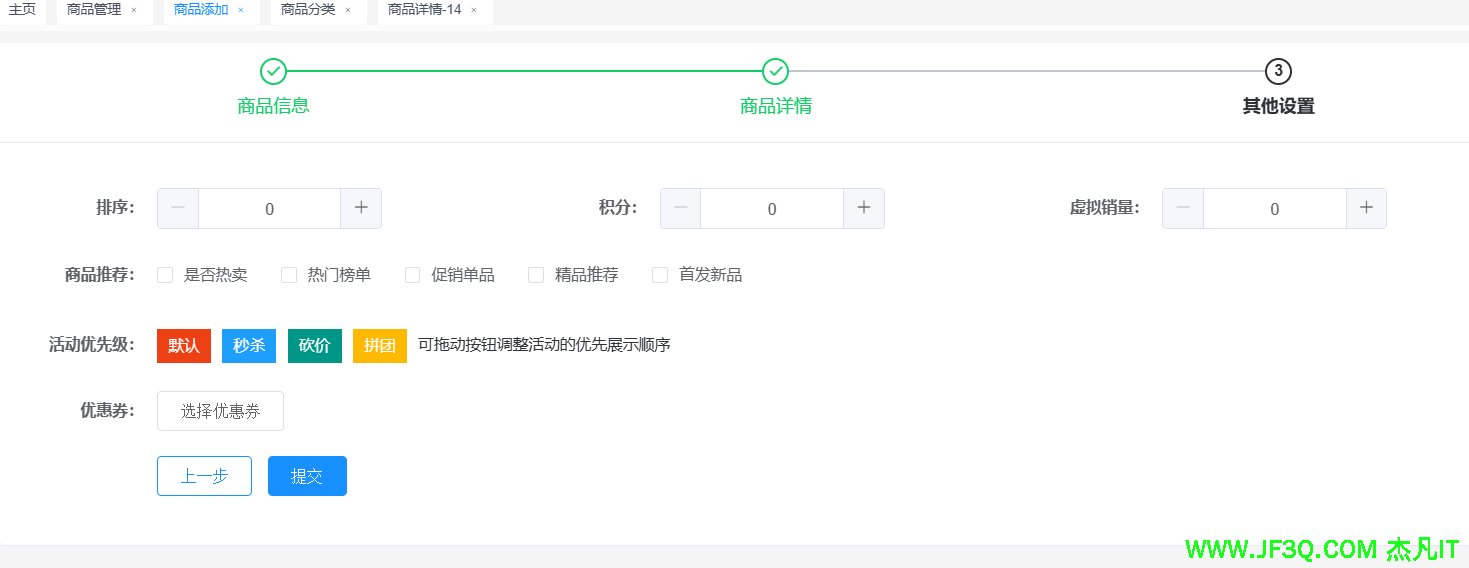
预期效果
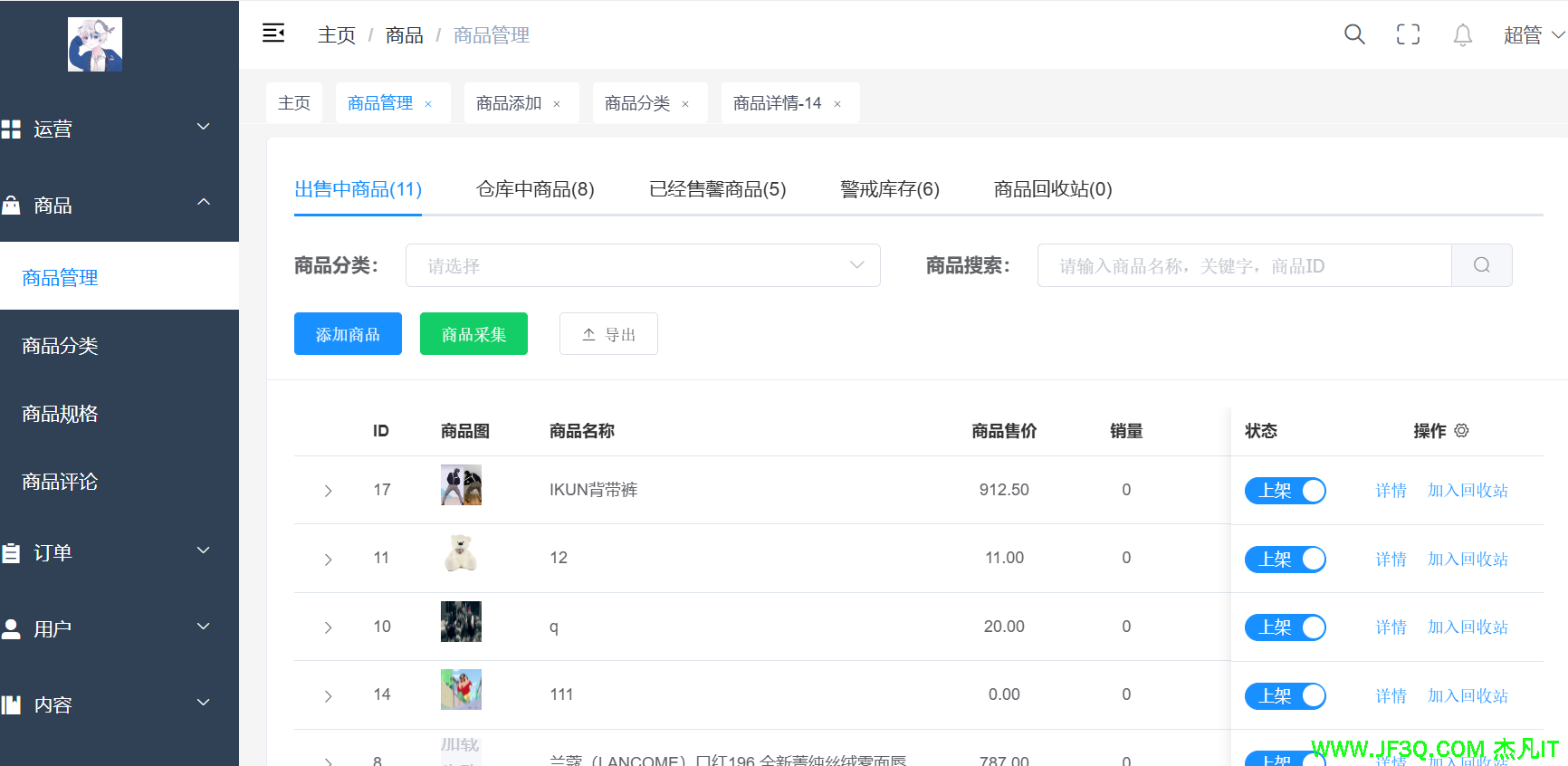
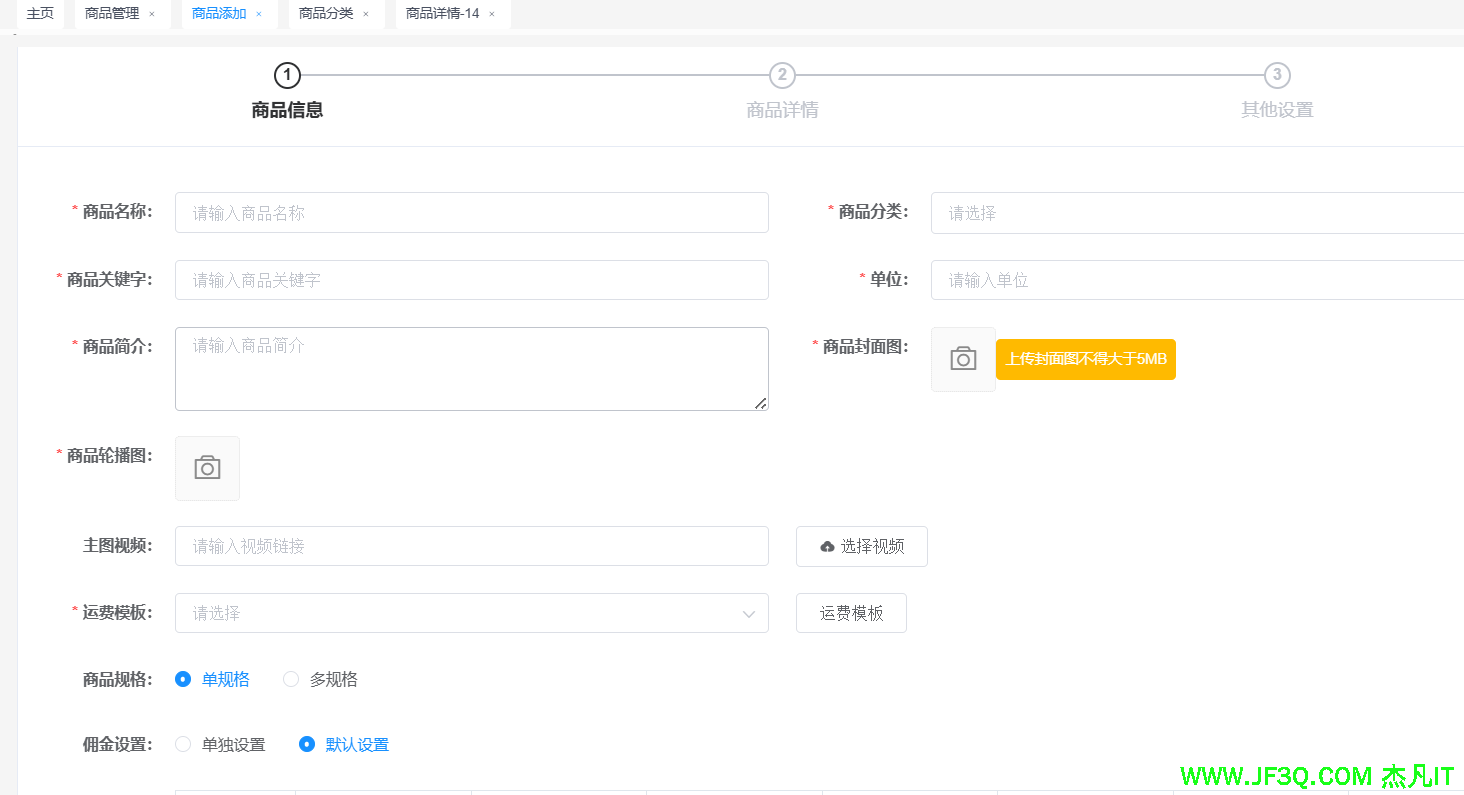
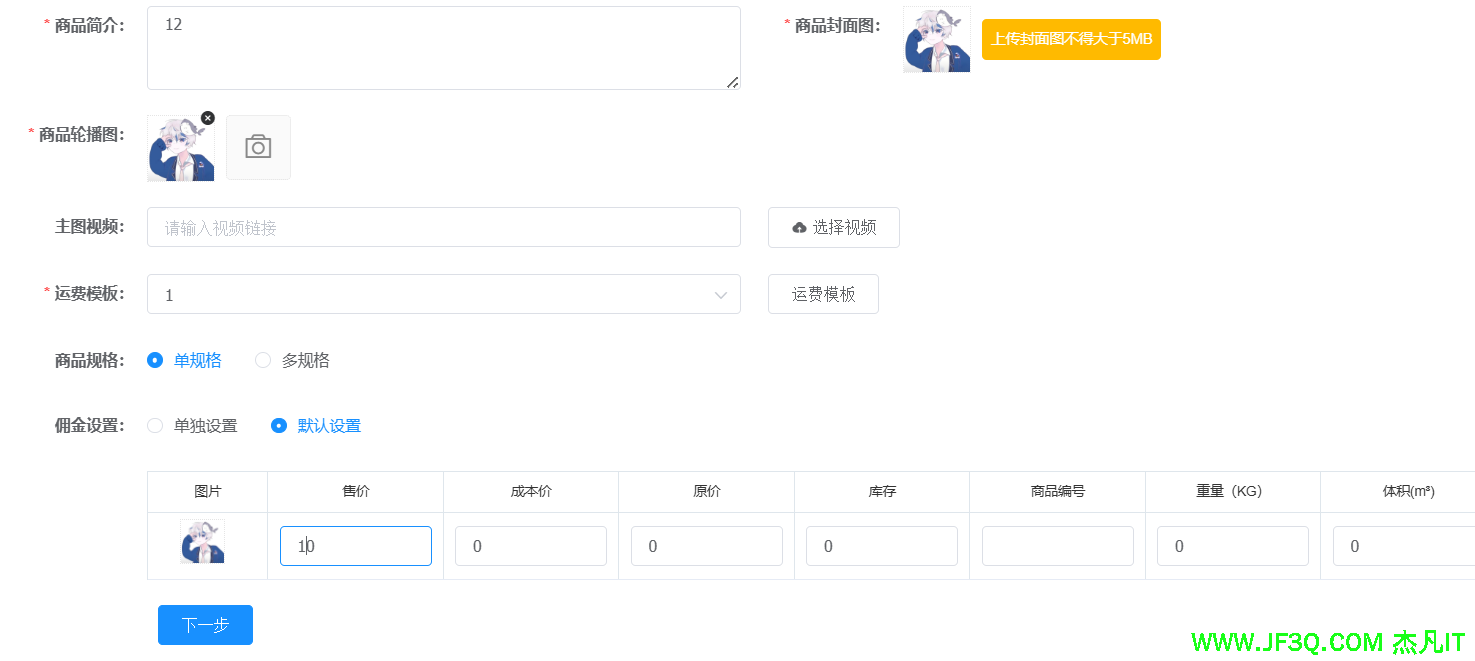
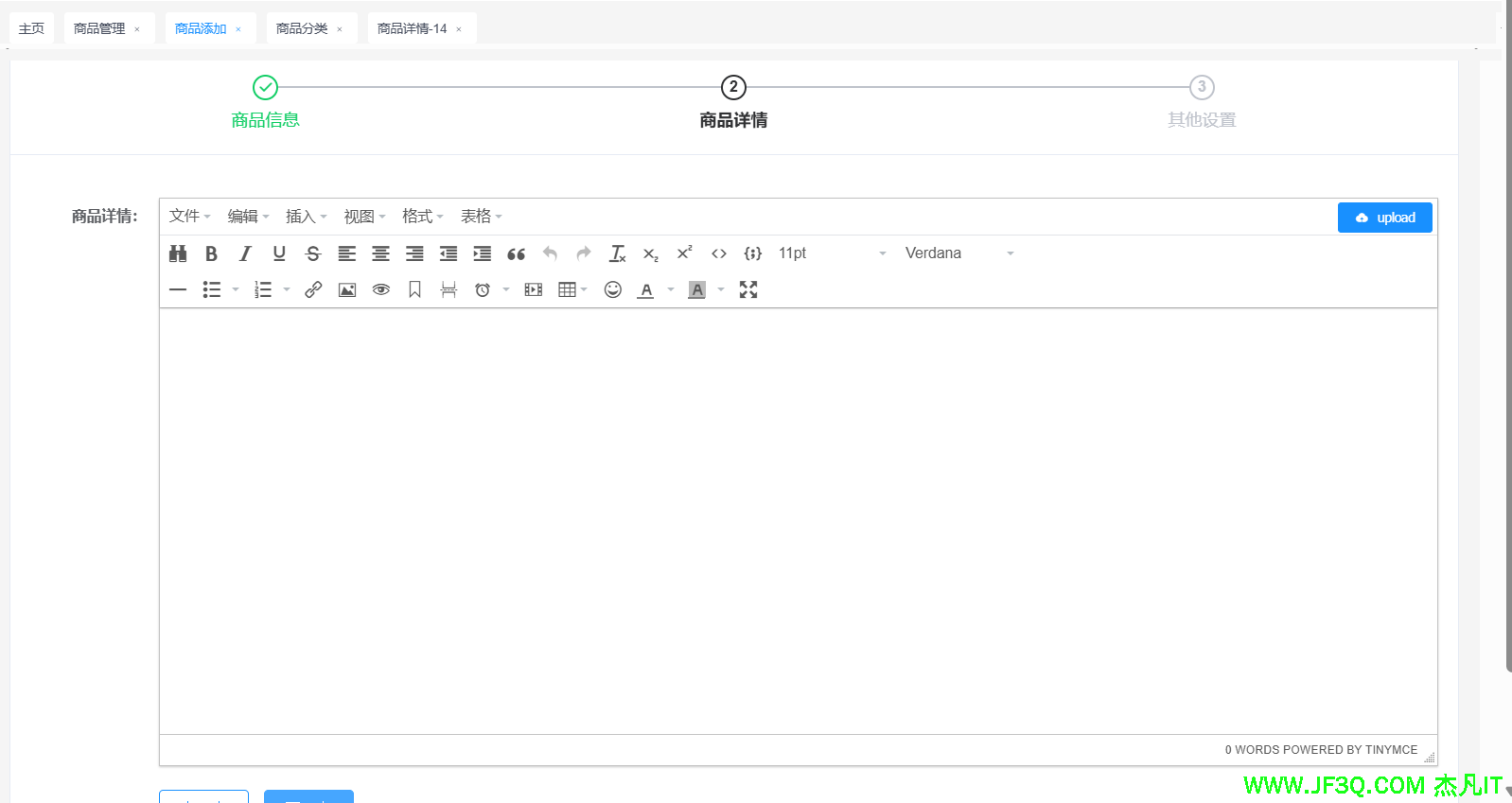
核心布局代码
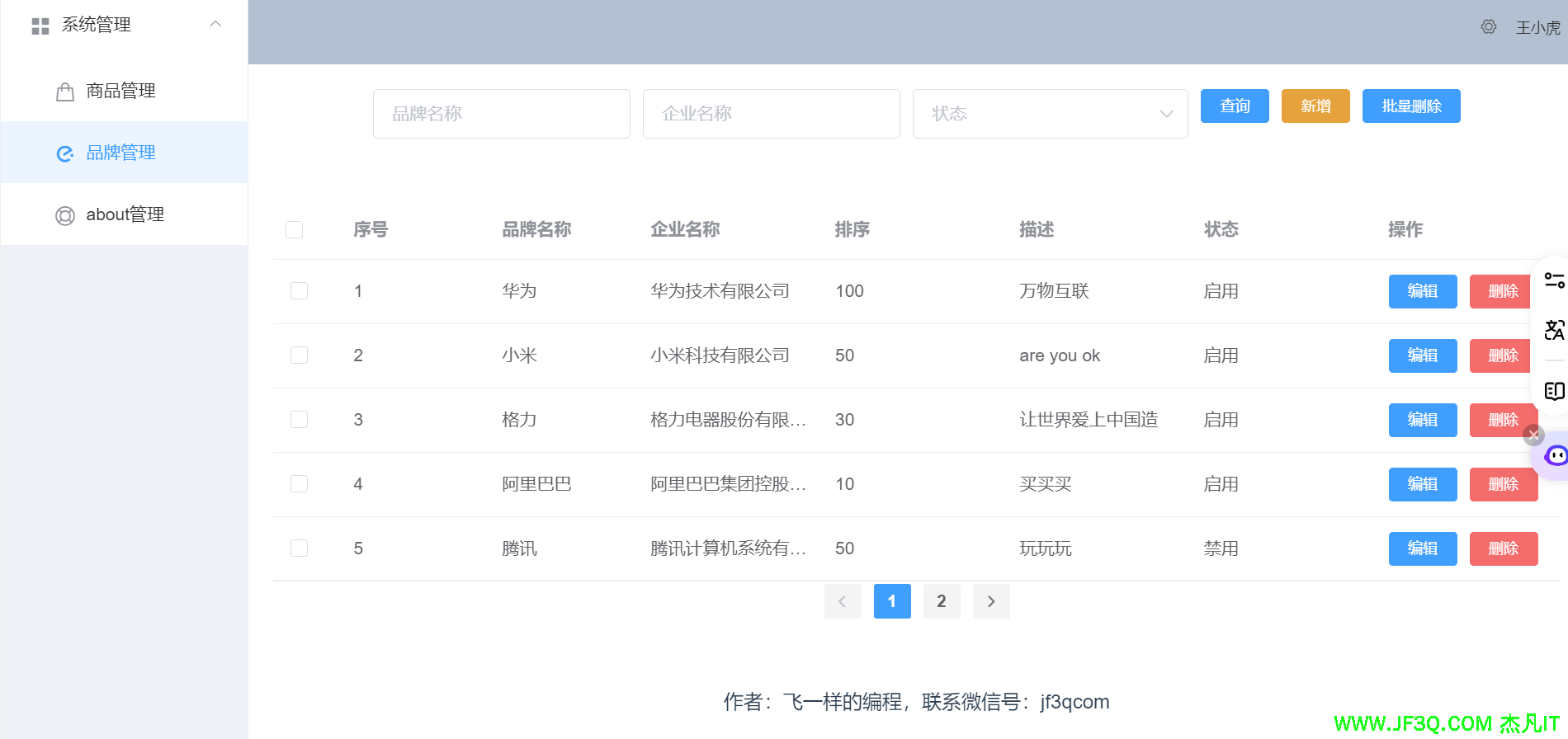
能做成我这种效果就行
<template>
  <div id="app">
    <el-container style="height: 100vh; border: 1px solid #eee;overflow: hidden;margin: 0;">
      <el-aside width="200px" style="background-color: rgb(238, 241, 246);position: fixed;height: 100vh;overflow-x: hidden;">
        <el-menu :default-openeds="defaultOpeneds"  router :collapse-transition="false"  @close="handleMenuClose">
          <el-submenu index="1" style="text-align: left" >
            <template slot="title"><i class="el-icon-menu"></i>系统管理</template>
              <el-menu-item index="/pro"><i class="el-icon-goods"></i>商品管理</el-menu-item>
              <el-menu-item index="/"><i class="el-icon-eleme"></i>品牌管理</el-menu-item>
              <el-menu-item index="/about"><i class="el-icon-help"></i>about管理</el-menu-item>

          </el-submenu>
        </el-menu>
      </el-aside>

      <el-container style="margin-left: 200px;width: calc(100vw - 200px);height: 100vh;overflow: hidden;position: fixed;">

        <el-header style="text-align: right; font-size: 12px;height: 60px;position:fixed;width: calc(100vw - 200px);">
          <el-dropdown>
            <i class="el-icon-setting" style="margin-right: 15px"></i>
            <el-dropdown-menu slot="dropdown">
              <el-dropdown-item>查看</el-dropdown-item>
              <el-dropdown-item>新增</el-dropdown-item>
              <el-dropdown-item>删除</el-dropdown-item>
            </el-dropdown-menu>
          </el-dropdown>
          <span>王小虎</span>
        </el-header>

        <el-main style="margin-top: 60px;height: calc(100vh - 500px); ">
          <router-view/>
        </el-main>

        <el-footer><p>作者:飞一样的编程,联系微信号:jf3qcom</p></el-footer>
      </el-container>
    </el-container>

  </div>
</template>

<script>

export default {
  name: 'app',
  data(){
    return {
      defaultOpeneds: ['1'], // 默认展开的菜单项
    }
  },
  methods:{
    handleMenuClose(index, indexPath) {

      // 阻止默认的折叠行为
      if (index === '1') {
        this.$nextTick(() => {
          this.defaultOpeneds = ['1'];
        });
      }
    }
  }


}
</script>

<style>
.el-header {
  background-color: #B3C0D1;
  color: #333;
  line-height: 60px;
}

.el-aside {
  color: #333;
}
#app {
  font-family: 'Avenir', Helvetica, Arial, sans-serif;
  -webkit-font-smoothing: antialiased;
  -moz-osx-font-smoothing: grayscale;
  text-align: center;
  color: #2c3e50;
  //margin-top: 60px;
}
body{margin: 0;padding: 0;}
</style>
日期格式时间戳转换
由于我们的后端是保存的时间戳的形式,
product.setAddTime(new Date().getTime()/1000);那展示的时候又怎么给我展示成年-月-日 时:分:秒的形式
npm install momentimport moment from "moment";
formatTimestamp(timestamp) {
//专门把时间戳转成对应的格式
return moment(timestamp).format('YYYY-MM-DD HH:mm:ss');
},
<template slot-scope="scope">
  {{formatTimestamp(scope.row.addTime*1000)}}
  </template>
文件上传
@MultipartConfig
public class ProductServlet extends HttpServlet {
 String id = req.getParameter("id");
            if (StringUtils.isNullOrEmpty(id)) {
                resp.getWriter().write(JSON.toJSONString(ResultVo.error("id必传")));
                resp.getWriter().close();
                resp.getWriter().flush();
            }


            //放外置盘符
            String uploadPath="D:\\upimg";

            Part filePart = req.getPart("file");

            if (filePart==null || filePart.getSize() ==0) {
                resp.getWriter().write(JSON.toJSONString(ResultVo.error("文件必传")));
                resp.getWriter().close();
                resp.getWriter().flush();
            }

            String fileName = filePart.getSubmittedFileName();//文件原始的名字

            //后缀名
            String suffix = fileName.substring(fileName.lastIndexOf("."));
            if(suffix.equalsIgnoreCase(".jpg")
                    || suffix.equalsIgnoreCase(".png")
                    || suffix.equalsIgnoreCase(".jpeg")
                    || suffix.equalsIgnoreCase(".gif")
            ){

                File savePath= new File(uploadPath);
                if(!savePath.exists()){
                    savePath.mkdirs();//自动创建好文件夹
                }


                //重命名文件名字  uuuxxxx99888.png
                String newFileName= UUID.randomUUID().toString().replace("-","");


                //将前端的file 保存到服务器对应目录
                try {
                    filePart.write(uploadPath+"/"+newFileName+suffix);
                    productDao.updateImge(id,newFileName+suffix);
                    resp.getWriter().write(JSON.toJSONString(ResultVo.success("上传成功",null)));
                    resp.getWriter().close();
                    resp.getWriter().flush();

                } catch (IOException e) {
                    e.printStackTrace();
                    resp.getWriter().write(JSON.toJSONString(ResultVo.error("出现异常")));
                    resp.getWriter().close();
                    resp.getWriter().flush();
                }


            }else{
                resp.getWriter().write(JSON.toJSONString(ResultVo.error("必须是图片,不能上传其他格式的")));
                resp.getWriter().close();
                resp.getWriter().flush();
            }
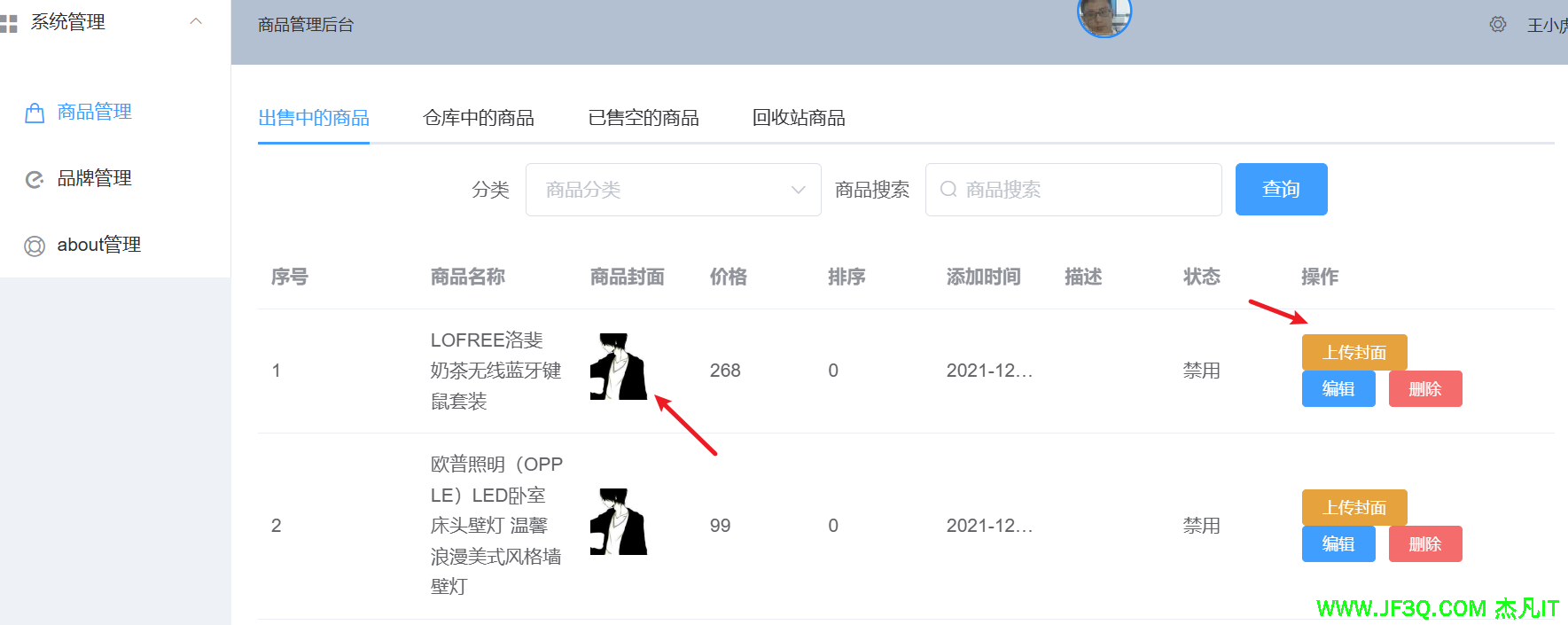
提醒:可以考虑给某个商品添加封面的时候,把 id 传过来,不断覆盖替换旧的封面图片
效果如下:
Tomcat 的虚拟路径
将我们上传到某个盘下的文件暴露出去,让别人能访问到
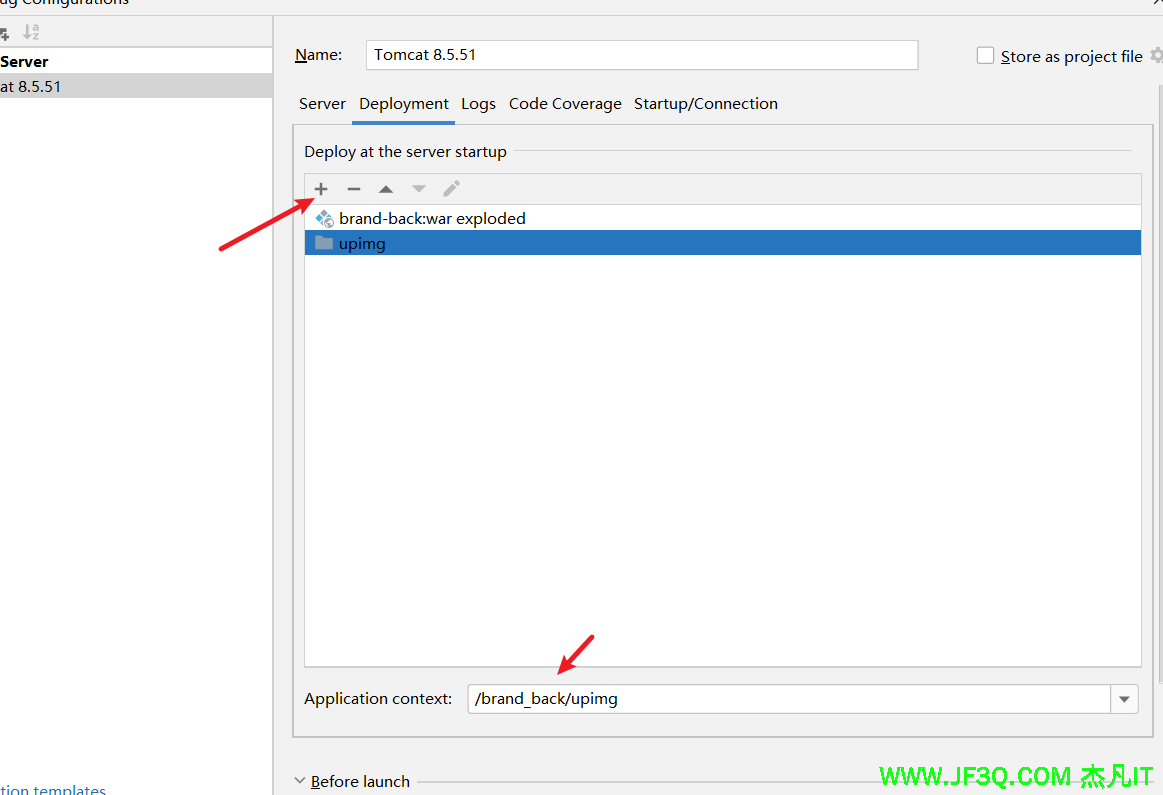
注意:如果想带项目名访问到你的图片的话,
作业
完成商品管理页面。增删改查,批量删除啥的都要。上下架商品。加入回收站,上传商品封面
好博客就要一起分享哦!分享海报
此处可发布评论
评论(0)展开评论
暂无评论,快来写一下吧
展开评论


他的专栏
 新业务
新业务  springboot学习
  ssm框架课
  vue学习
vue学习  【带小白】java基础速成
 他感兴趣的技术